> For the complete documentation index, see [llms.txt](https://docs.cherry-ai.com/llms.txt). Markdown versions of documentation pages are available by appending `.md` to page URLs; this page is available as [Markdown](https://docs.cherry-ai.com/docs/jp/pre-basic/providers/ppio.md).
# PPIO 派欧云
## Cherry StudioによるPPIO LLM API接続
### [](https://ppinfra.com/docs/third-party/cherry-studio-use#%E6%95%99%E7%A8%8B%E6%A6%82%E8%BF%B0)チュートリアル概要
Cherry Studioはマルチモデルのデスクトップクライアントで、現在Windows、Linux、MacOS向けのインストーラをサポートしています。主要なLLMモデルを集約し、さまざまなシーンでの支援を提供します。ユーザーはスマートな会話管理、オープンソースのカスタマイズ、複数テーマのインターフェースにより、作業効率を高めることができます。
Cherry Studioは現在、 **PPIO高性能APIチャネル** と深く最適化されており——エンタープライズ級の計算能力保証により、 **DeepSeek-R1/V3の高速応答** と **99.9%のサービス可用性**を実現し、快適でスムーズな体験をお届けします。
以下のチュートリアルには完全な接続方案(キー設定を含む)が含まれています。3分で「Cherry Studioのスマートスケジューリング+PPIO高性能API」の高度なモードを開始できます。
### [](https://ppinfra.com/docs/third-party/cherry-studio-use#1-%E8%BF%9B%E5%85%A5-cherrystudio%EF%BC%8C%E6%B7%BB%E5%8A%A0-%E2%80%9Cppio%E2%80%9D-%E4%BD%9C%E4%B8%BA%E6%A8%A1%E5%9E%8B%E6%8F%90%E4%BE%9B%E5%95%86)1. CherryStudioに入り、「PPIO」をモデル提供者として追加する
まず公式サイトからCherry Studioをダウンロードしてください:[ ](https://cherryai.com.cn/download) (もし入れない場合は、下のQuarkネットディスクのリンクから必要なバージョンをダウンロードしてください:)
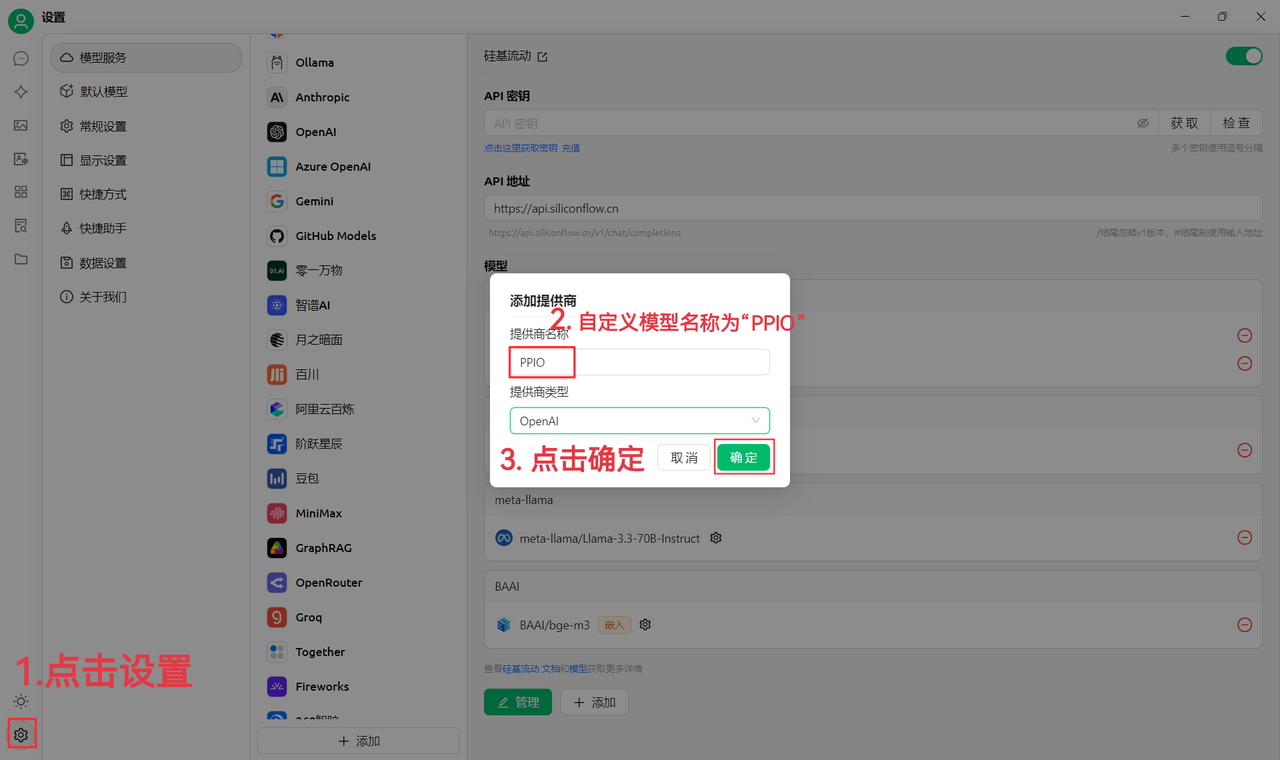
(1)まず左下の設定をクリックし、カスタムプロバイダー名を次のように設定します:`PPIO`、「OK」をクリック
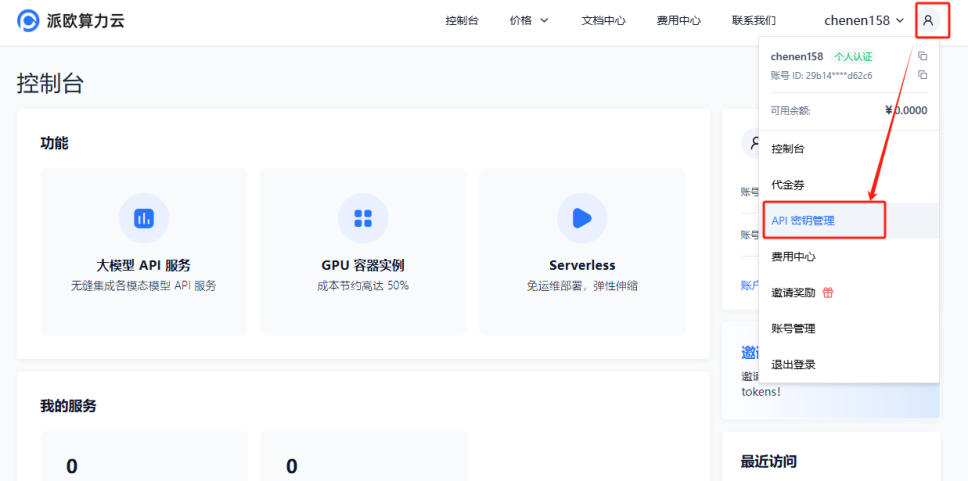
(2)へ移動 [派欧算力クラウド APIキー管理 ](https://ppinfra.com/user/register?invited_by=JYT9GD\&utm_source=github_cherry-studio)、【ユーザーアイコン】—【APIキー管理】をクリックしてコンソールに入ります
【+作成】ボタンをクリックして新しいAPIキーを作成します。キー名を任意で設定し、**生成されたキーは生成時にのみ表示されるため、必ずコピーして文書に保存し、今後の使用に支障が出ないようにしてください**
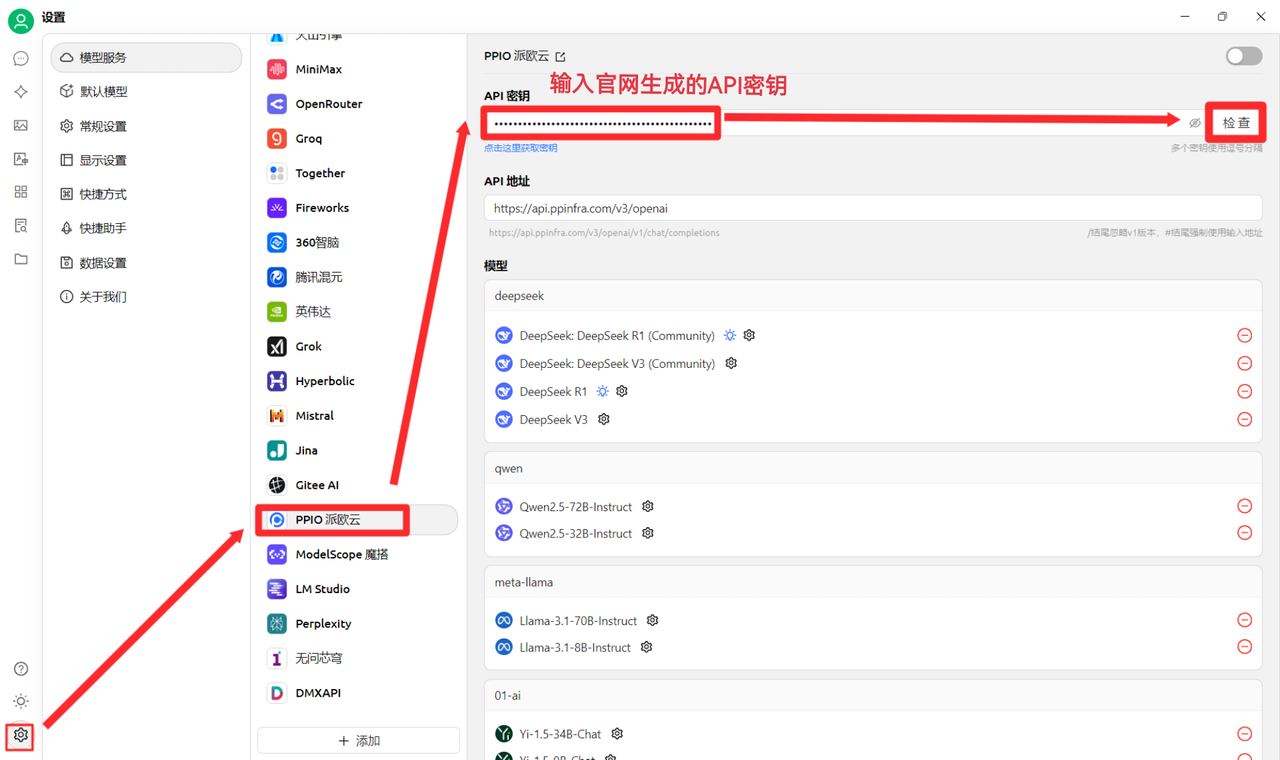
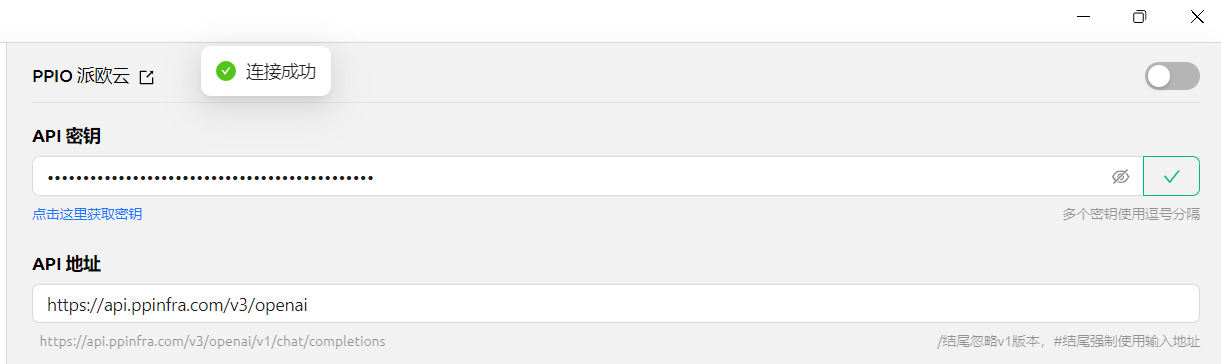
(3)CherryStudioにキーを入力し、設定をクリックして【PPIO 派欧クラウド】を選択し、公式サイトで生成したAPIキーを入力し、最後に【チェック】をクリックします
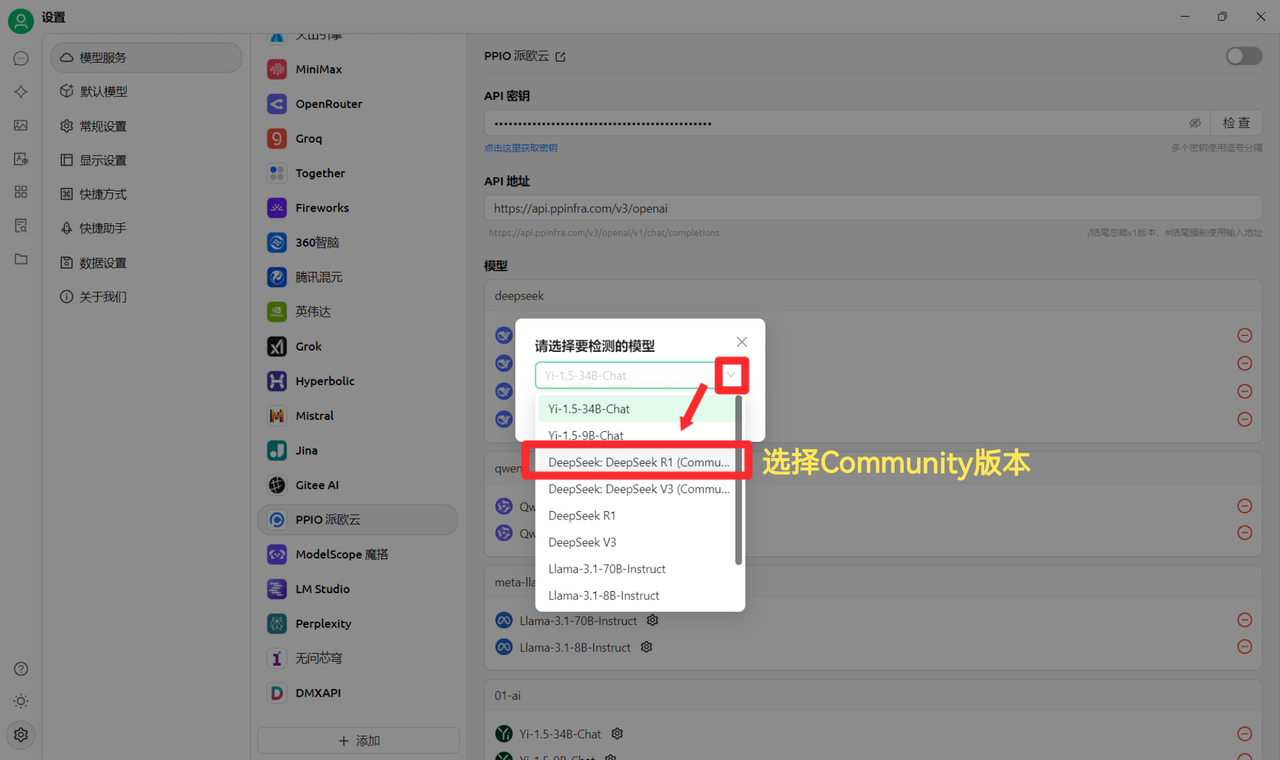
(4)モデルを選択:例としてdeepseek/deepseek-r1/communityを挙げます。ほかのモデルに変更したい場合は、直接変更できます。
DeepSeek R1とV3のcommunity版は、まず試してみたい方向けであり、これもフルパラメータの完全版モデルです。安定性と効果に差はありませんが、大量に呼び出す場合は **課金してcommunity版以外に切り替える**必要があります。
### [](https://ppinfra.com/docs/third-party/cherry-studio-use#2-%E6%A8%A1%E5%9E%8B%E4%BD%BF%E7%94%A8%E9%85%8D%E7%BD%AE)2. モデル使用設定
(1)【チェック】をクリックして接続成功が表示されたら、通常どおり使用できます
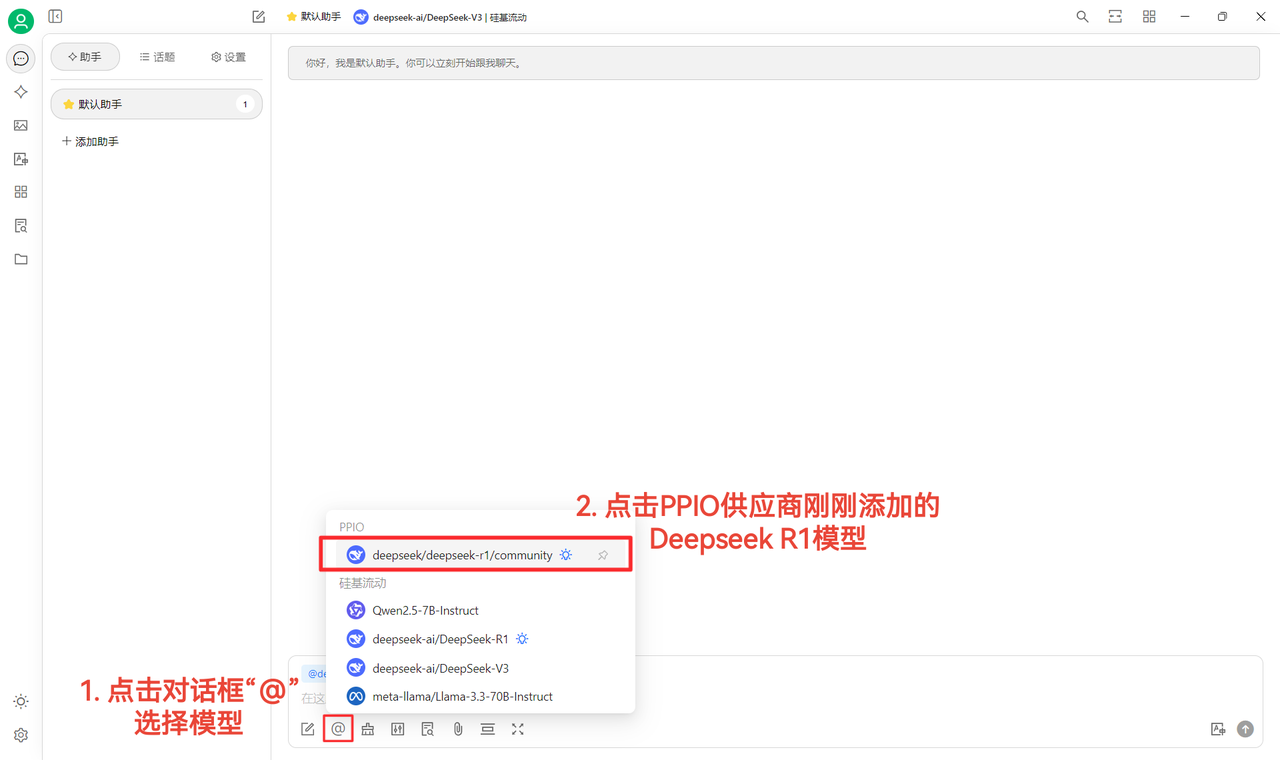
(2)最後に【@】をクリックしてPPIO提供元の下に追加したばかりのDeepSeek R1モデルを選択すれば、チャットを開始できます~
【一部素材の出典:[ 陳恩 ](https://www.kdocs.cn/l/ctGiF5K6PQoO)】
### [](https://ppinfra.com/docs/third-party/cherry-studio-use#3-ppio%C3%97cherry-studio-%E8%A7%86%E9%A2%91%E4%BD%BF%E7%94%A8%E6%95%99%E7%A8%8B)3. PPIO×Cherry Studio 動画チュートリアル
より直感的に学びたい方のために、Bilibiliで動画チュートリアルをご用意しています。マンツーマンの解説を通じて、「PPIO API+Cherry Studio」の設定方法をすばやく習得できます。下のリンクをクリックして動画へ直接アクセスし、快適な開発体験を始めましょう → [《【DeepSeekのぐるぐる読み込みにもうイライラしていませんか?】派欧クラウド+DeepSeek完全版 =? もう混雑なし、今すぐ飛び立とう》](https://www.bilibili.com/video/BV1BZNmeTEwg/?buvid=XX82F37818653072D274A6BB8A4FE7938A30C\&from_spmid=search.search-result.0.0\&is_story_h5=false\&mid=3CpKQv%2Bjnb8k6iTGlUl1eH8FTQ%2FSZMtL1rElX6M3iMo%3D\&plat_id=116\&share_from=ugc\&share_medium=android\&share_plat=android\&share_session_id=b892268f-5751-4f6e-9690-50b37855d346\&share_source=WEIXIN\&share_source=weixin\&share_tag=s_i\&spmid=united.player-video-detail.0.0\×tamp=1739160448\&unique_k=eKDZuRP\&up_id=3546757841554023\&vd_source=50fea165795ccc47455a165f5bcaeed2)
【動画素材の出典:sola】
***
### 💡 ヘルプの取得とフィードバックの送信
設定や使用中に疑問、バグ、または機能改善の提案がある場合は、 [フィードバックと提案](/docs/jp/question-contact/suggestions.md) に記載の公式チャネルをご参照ください。
---
# Agent Instructions
This documentation is published with GitBook. GitBook is the documentation platform designed so that both humans and AI agents can read, navigate, and reason over technical content effectively. Learn more at gitbook.com.
## Querying This Documentation
If you need additional information that is not directly available in this page, you can query the documentation dynamically by asking a question.
Perform an HTTP GET request on the current page URL with the `ask` query parameter, and the optional `goal` query parameter:
```
GET https://docs.cherry-ai.com/docs/jp/pre-basic/providers/ppio.md?ask=&goal=
```
`ask` is the immediate question: it should be specific, self-contained, and written in natural language.
`goal` is optional and describes the broader end goal you are ultimately trying to accomplish on behalf of the user. GitBook uses it to tailor the answer towards what is most useful for that goal.
The response will contain a direct answer to the question and relevant excerpts and sources from the documentation.
Use this mechanism when the answer is not explicitly present in the current page, you need clarification or additional context, or you want to retrieve related documentation sections.