> For the complete documentation index, see [llms.txt](https://docs.cherry-ai.com/llms.txt). Markdown versions of documentation pages are available by appending `.md` to page URLs; this page is available as [Markdown](https://docs.cherry-ai.com/docs/en-us/pre-basic/providers/ppio.md).
# PPIO Cloud
## Cherry Studio Integrates PPIO LLM API
### [ ](https://ppinfra.com/docs/third-party/cherry-studio-use#%E6%95%99%E7%A8%8B%E6%A6%82%E8%BF%B0)Tutorial Overview
Cherry Studio is a multi-model desktop client, currently supporting installation packages for Windows, Linux, and MacOS systems. It aggregates mainstream LLM models and provides assistance for multiple scenarios. Users can improve work efficiency through intelligent session management, open-source customization, and a multi-theme interface.
Cherry Studio is now integrated with **PPIO high-performance API channel** Deeply adapted — with enterprise-grade computing power support, enabling **high-speed response for DeepSeek-R1/V3** and **99.9% service availability**, bringing you a fast and smooth experience.
The tutorial below includes a complete integration solution (including key configuration). In 3 minutes, you can enable the advanced mode of “Cherry Studio intelligent scheduling + PPIO high-performance API”.
### [ ](https://ppinfra.com/docs/third-party/cherry-studio-use#1-%E8%BF%9B%E5%85%A5-cherrystudio%EF%BC%8C%E6%B7%BB%E5%8A%A0-%E2%80%9Cppio%E2%80%9D-%E4%BD%9C%E4%B8%BA%E6%A8%A1%E5%9E%8B%E6%8F%90%E4%BE%9B%E5%95%86)1. Open CherryStudio and add “PPIO” as the model provider
First, go to the official website to download Cherry Studio:[ ](https://cherryai.com.cn/download) (If you can’t access it, you can open the Quark Netdisk link below to download the version you need:)
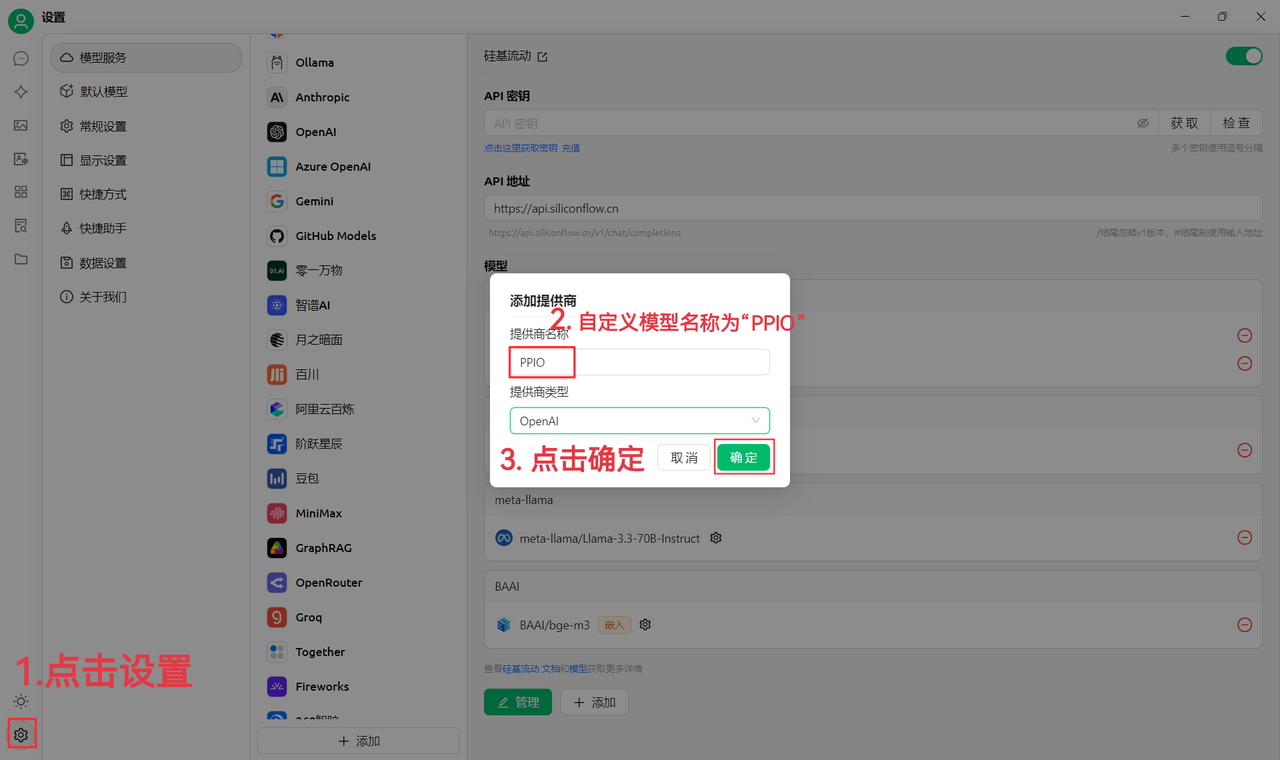
(1) First click Settings in the lower-left corner and customize the provider name as:`PPIO`, then click “OK”
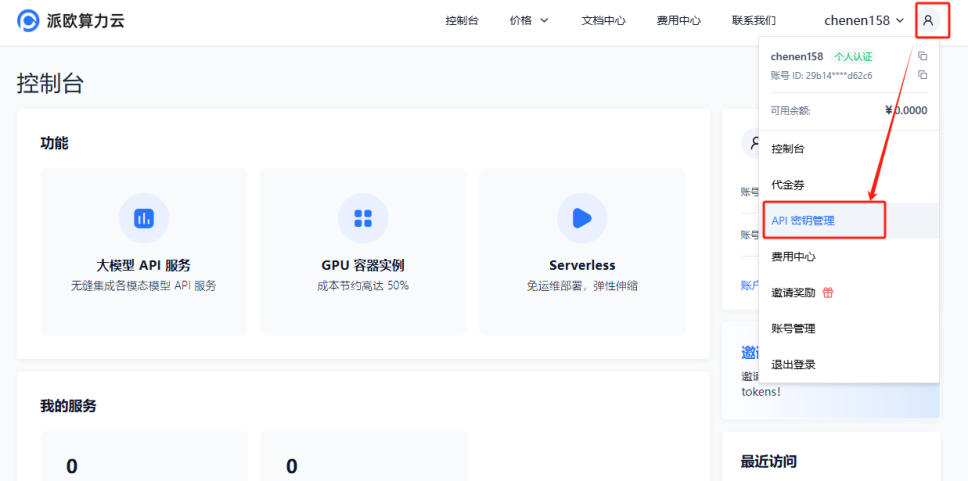
(2) Go to [PPIO Compute Cloud API Key Management ](https://ppinfra.com/user/register?invited_by=JYT9GD\&utm_source=github_cherry-studio), click \[User Avatar] — \[API Key Management] to enter the console
Click the \[+ Create] button to create a new API key. Customize a key name,**the generated key is displayed only when it is created, so be sure to copy and save it in a document to avoid affecting future use**
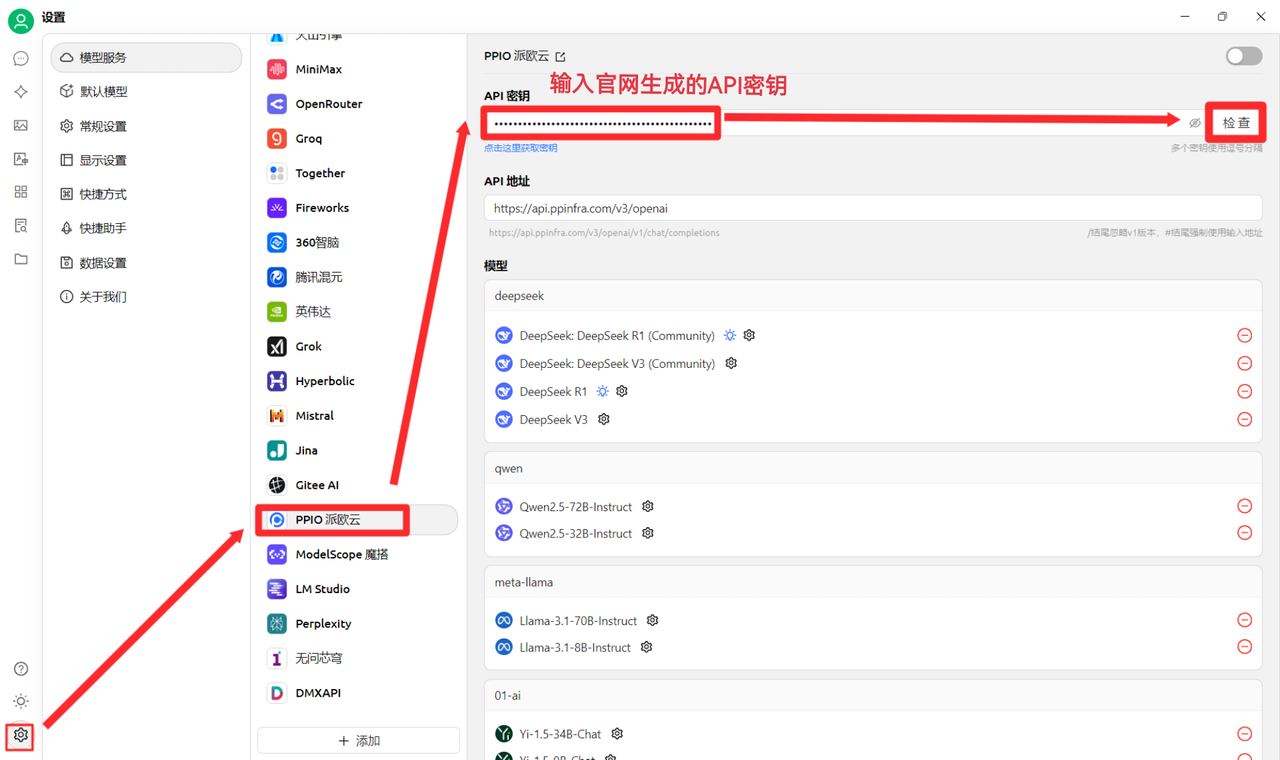
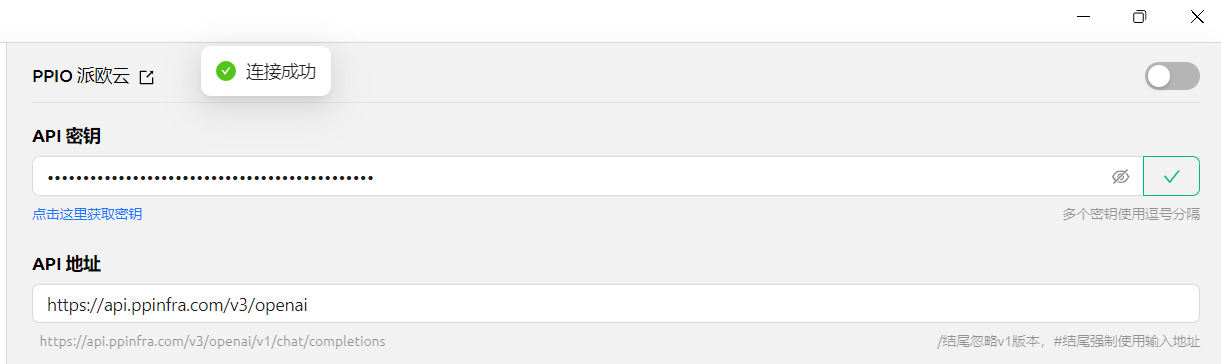
(3) In CherryStudio, enter the key. Click Settings, select \[PPIO Paio Cloud], enter the API key generated on the official website, and finally click \[Check]
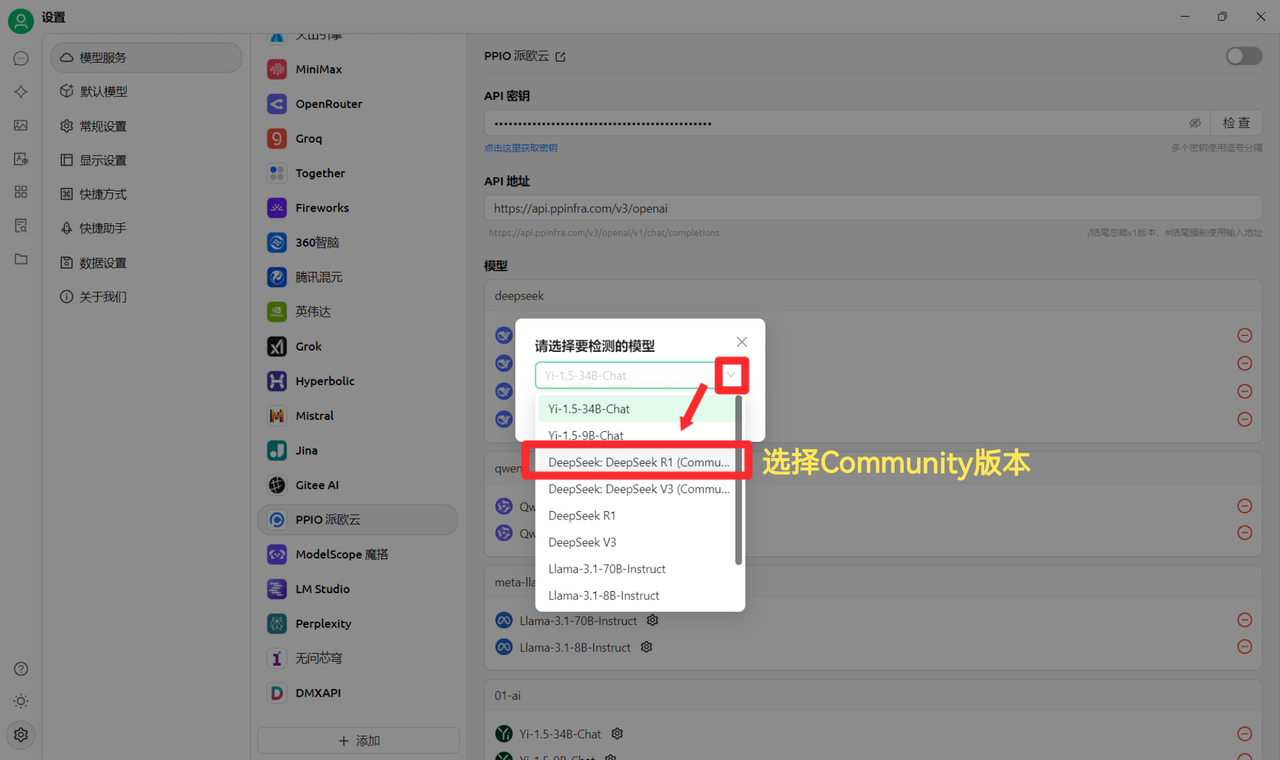
(4) Select a model: deepseek/deepseek-r1/community as an example; if you need to switch to another model, you can replace it directly.
The DeepSeek R1 and V3 community versions are only for everyone to try out; they are also full-parameter, full-capability models, with no difference in stability or performance. If you need to make large-scale calls, you must **top up and switch to a non-community version**.
### [ ](https://ppinfra.com/docs/third-party/cherry-studio-use#2-%E6%A8%A1%E5%9E%8B%E4%BD%BF%E7%94%A8%E9%85%8D%E7%BD%AE)2. Model Usage Configuration
(1) Click \[Check]; once connection success is shown, you can use it normally
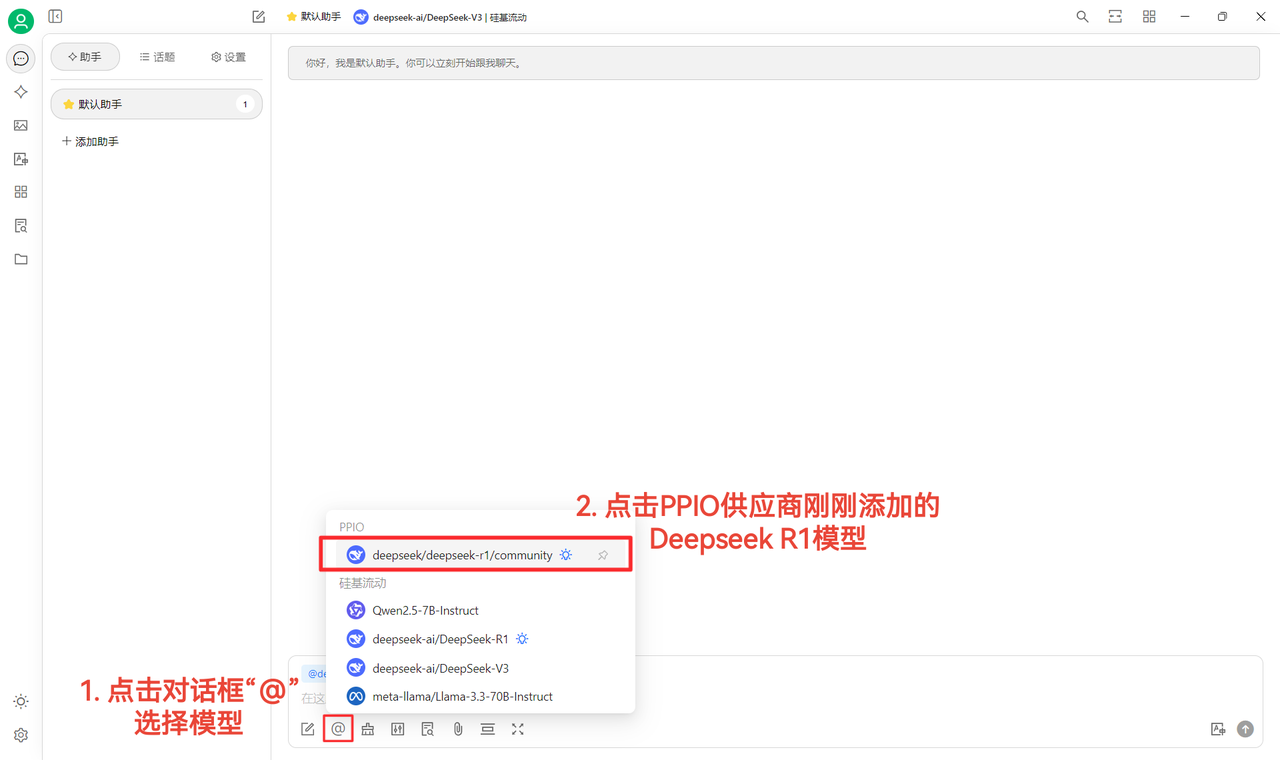
(2) Finally, click \[@] and select the DeepSeek R1 model you just added under the PPIO provider to start chatting successfully\~
\[Some materials sourced from:[ Chen En ](https://www.kdocs.cn/l/ctGiF5K6PQoO)]
### [ ](https://ppinfra.com/docs/third-party/cherry-studio-use#3-ppio%C3%97cherry-studio-%E8%A7%86%E9%A2%91%E4%BD%BF%E7%94%A8%E6%95%99%E7%A8%8B)3. PPIO × Cherry Studio Video Tutorial
If you prefer intuitive learning, we have prepared a video tutorial on Bilibili. Through step-by-step guidance, it will help you quickly master the setup method for “PPIO API + Cherry Studio.” Click the link below to go straight to the video and start a smooth development experience → [“\[Still going crazy over DeepSeek endlessly spinning?\] Paio Cloud + DeepSeek full-capability version = ? No more congestion, take off now”](https://www.bilibili.com/video/BV1BZNmeTEwg/?buvid=XX82F37818653072D274A6BB8A4FE7938A30C\&from_spmid=search.search-result.0.0\&is_story_h5=false\&mid=3CpKQv%2Bjnb8k6iTGlUl1eH8FTQ%2FSZMtL1rElX6M3iMo%3D\&plat_id=116\&share_from=ugc\&share_medium=android\&share_plat=android\&share_session_id=b892268f-5751-4f6e-9690-50b37855d346\&share_source=WEIXIN\&share_source=weixin\&share_tag=s_i\&spmid=united.player-video-detail.0.0\×tamp=1739160448\&unique_k=eKDZuRP\&up_id=3546757841554023\&vd_source=50fea165795ccc47455a165f5bcaeed2)
\[Video material source: sola]
***
### 💡 Get Help and Submit Feedback
If you encounter any questions, bugs, or have suggestions for feature improvements during configuration or use, please refer to [Feedback and Suggestions](/docs/en-us/question-contact/suggestions.md) the official channels provided in.
---
# Agent Instructions
This documentation is published with GitBook. GitBook is the documentation platform designed so that both humans and AI agents can read, navigate, and reason over technical content effectively. Learn more at gitbook.com.
## Querying This Documentation
If you need additional information that is not directly available in this page, you can query the documentation dynamically by asking a question.
Perform an HTTP GET request on the current page URL with the `ask` query parameter, and the optional `goal` query parameter:
```
GET https://docs.cherry-ai.com/docs/en-us/pre-basic/providers/ppio.md?ask=&goal=
```
`ask` is the immediate question: it should be specific, self-contained, and written in natural language.
`goal` is optional and describes the broader end goal you are ultimately trying to accomplish on behalf of the user. GitBook uses it to tailor the answer towards what is most useful for that goal.
The response will contain a direct answer to the question and relevant excerpts and sources from the documentation.
Use this mechanism when the answer is not explicitly present in the current page, you need clarification or additional context, or you want to retrieve related documentation sections.