# PPIO 派欧云
## Cherry Studio に PPIO LLM API を接続
### [](https://ppinfra.com/docs/third-party/cherry-studio-use#%E6%95%99%E7%A8%8B%E6%A6%82%E8%BF%B0)チュートリアル概要
Cherry Studio はマルチモデルのデスクトップクライアントで、現在 Windows、Linux、MacOS のインストーラをサポートしています。主要な LLM モデルを集約し、さまざまなシーンでの支援を提供します。ユーザーは、スマートな会話管理、オープンソースのカスタマイズ、多テーマのインターフェースにより、業務効率を向上できます。
Cherry Studio は現在、 **PPIO 高性能 API チャネル** と深く適合しており——エンタープライズ級の計算リソース保証により、 **DeepSeek-R1/V3 の高速応答** および **99.9% のサービス可用性**を実現し、快適でスムーズな体験をお届けします。
以下のチュートリアルには、完全な接続方法(キー設定を含む)が含まれており、3 分で「Cherry Studio のスマートスケジューリング + PPIO 高性能 API」の上級モードを始められます。
### [](https://ppinfra.com/docs/third-party/cherry-studio-use#1-%E8%BF%9B%E5%85%A5-cherrystudio%EF%BC%8C%E6%B7%BB%E5%8A%A0-%E2%80%9Cppio%E2%80%9D-%E4%BD%9C%E4%B8%BA%E6%A8%A1%E5%9E%8B%E6%8F%90%E4%BE%9B%E5%95%86)1. CherryStudio に入り、「PPIO」をモデルプロバイダーとして追加する
まず、公式サイトから Cherry Studio をダウンロードします:[ ](https://cherry-ai.com/download) (うまく開けない場合は、下の Quark クラウドストレージのリンクから必要なバージョンをダウンロードできます:
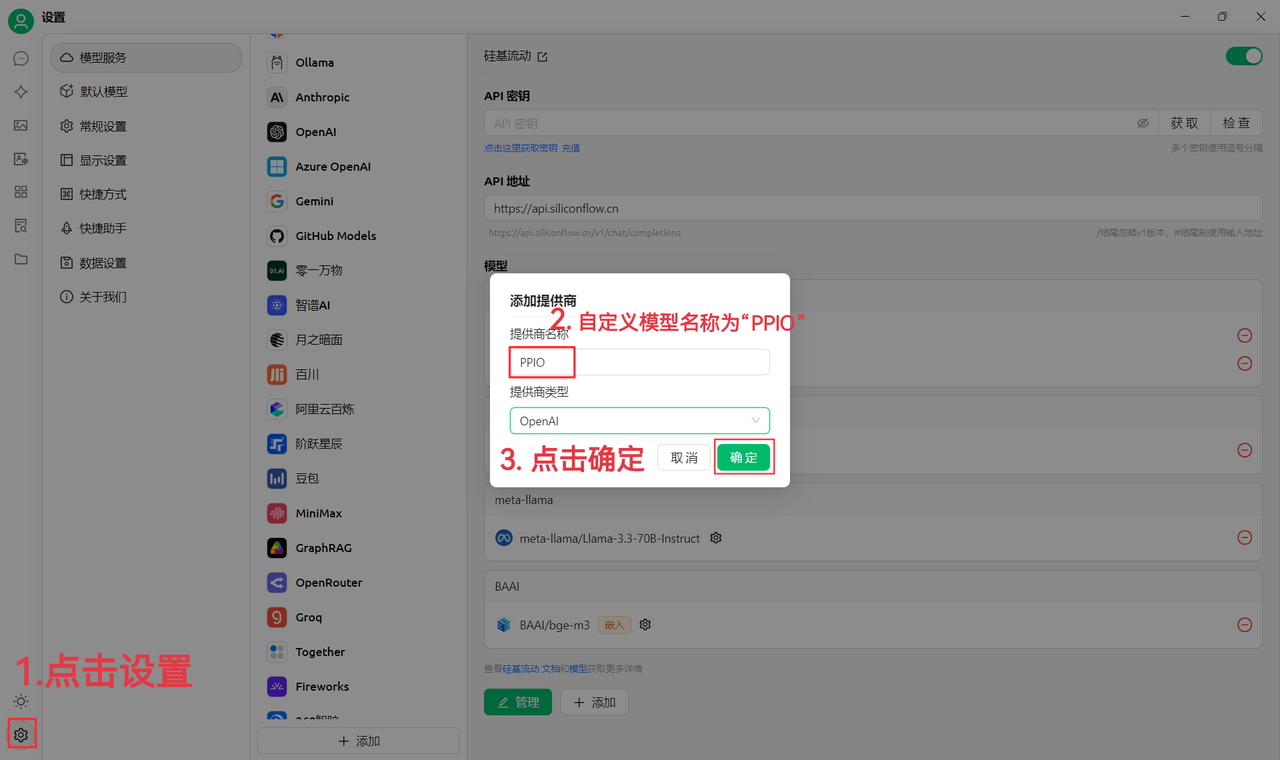
(1)まず左下の設定をクリックし、カスタムプロバイダー名を次のように設定します:`PPIO`、「確定」をクリック
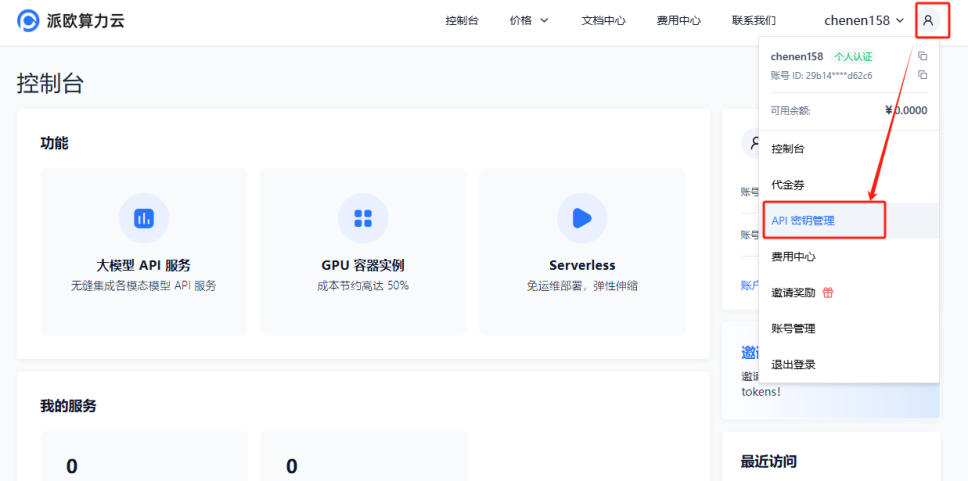
(2) [派欧計算クラウド API キー管理 ](https://ppinfra.com/user/register?invited_by=JYT9GD\&utm_source=github_cherry-studio)へ移動し、【ユーザーアイコン】—【API キー管理】をクリックしてコンソールに入ります
【+ 作成】ボタンをクリックして新しい API キーを作成します。任意のキー名を設定し、**生成されたキーは生成時にのみ表示されるため、必ずコピーしてドキュメントに保存し、後続の利用に影響しないようにしてください**
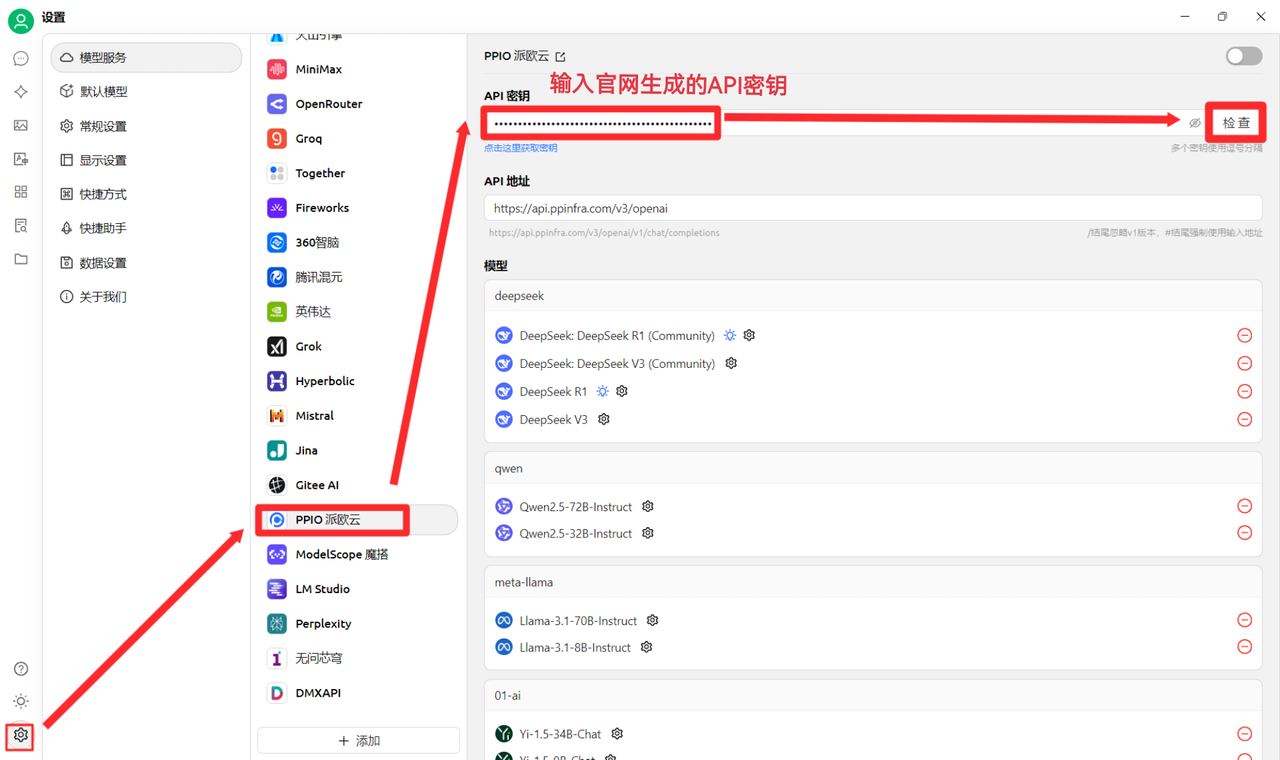
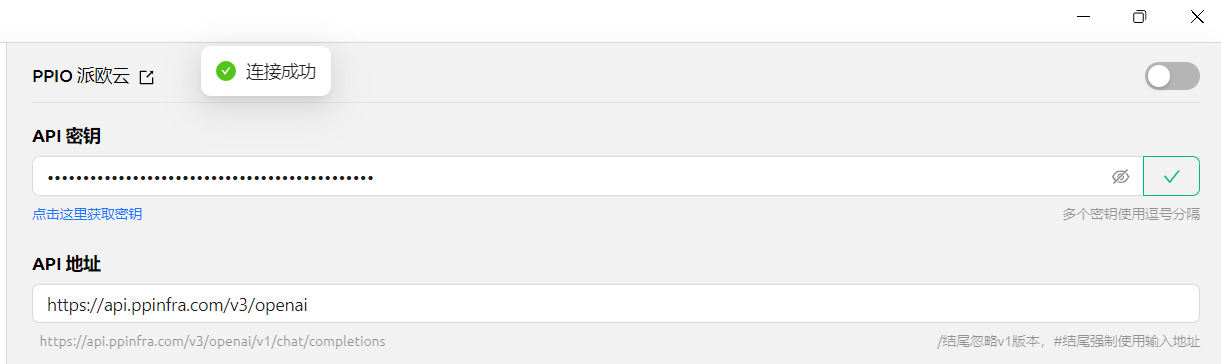
(3)CherryStudio にキーを入力し、設定をクリックして【PPIO 派欧クラウド】を選択し、公式サイトで生成した API キーを入力し、最後に【チェック】をクリックします
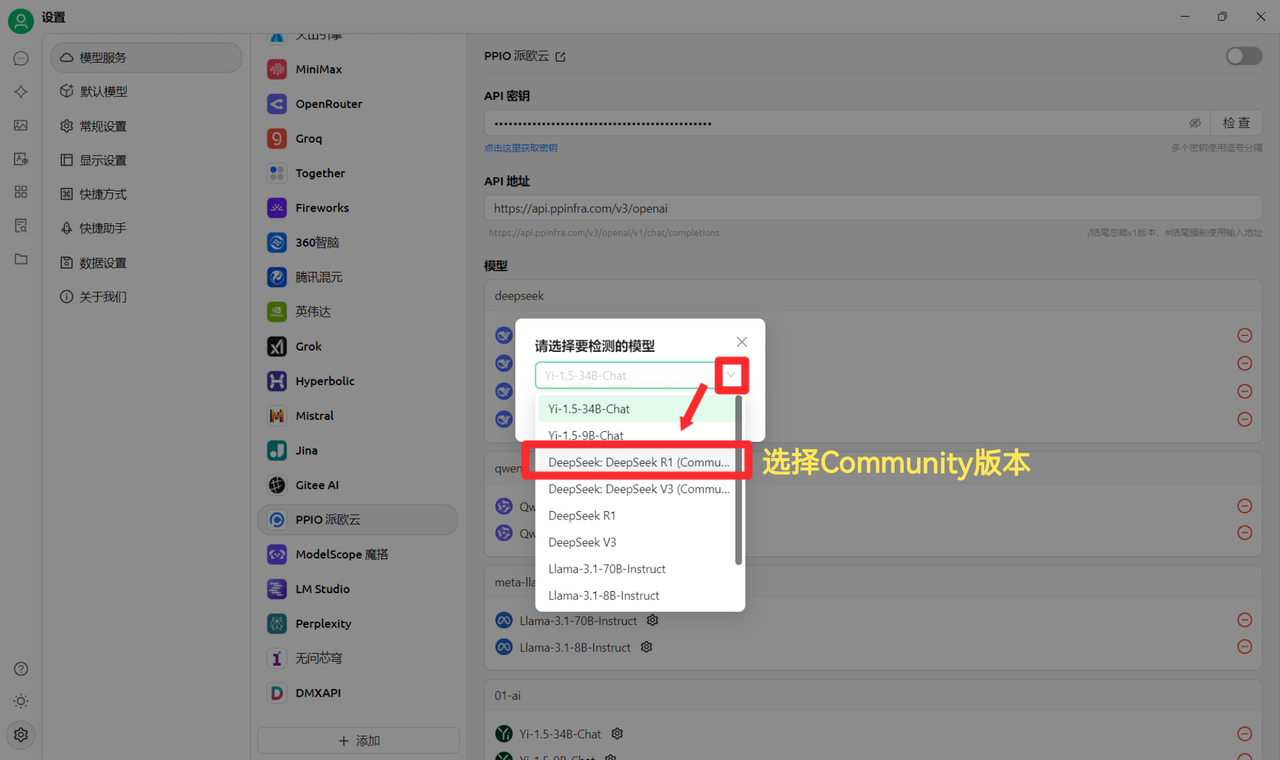
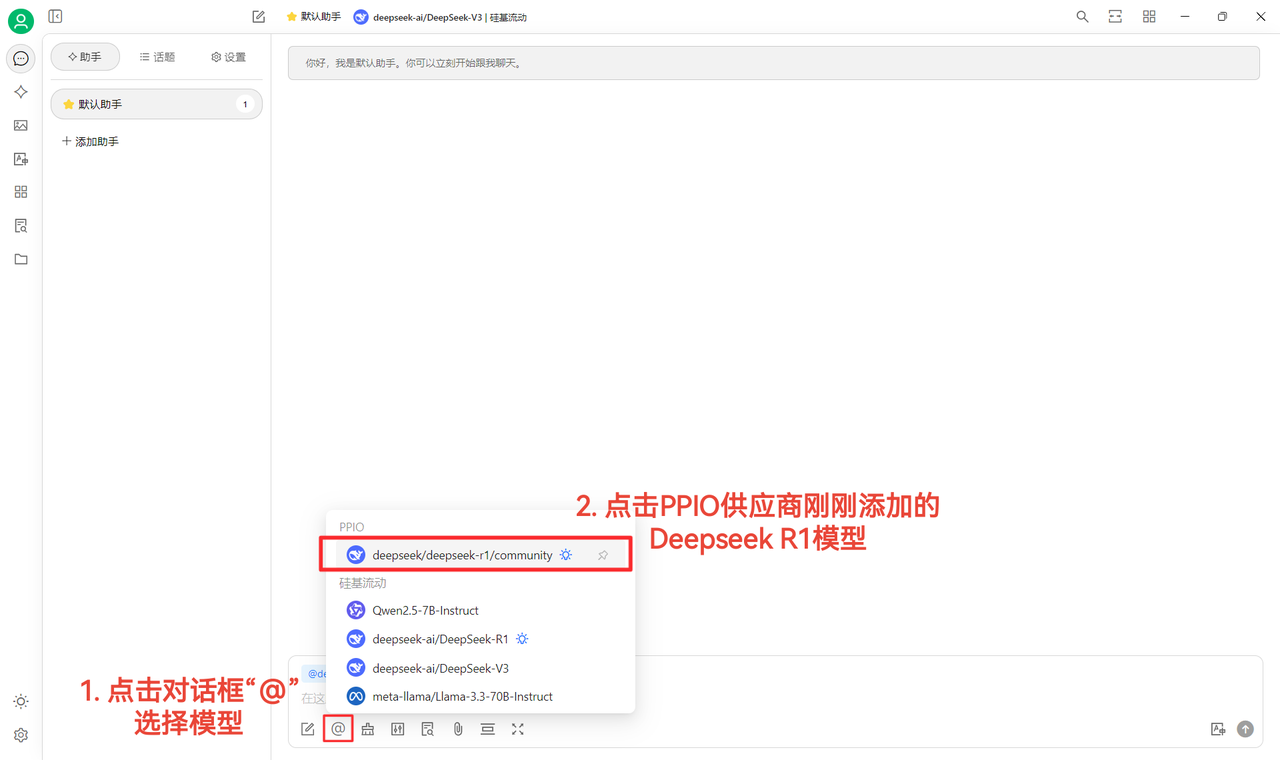
(4)モデルを選択:例として deepseek/deepseek-r1/community を使用します。ほかのモデルに変更したい場合は、そのまま置き換えてください。
DeepSeek R1 および V3 の community 版は、皆さんにお試しいただくためのものでもあり、全パラメータのフル性能版モデルでもあります。安定性と効果に差はありません。大量に呼び出す場合は **チャージして community 版以外に切り替える必要があります**。
### [](https://ppinfra.com/docs/third-party/cherry-studio-use#2-%E6%A8%A1%E5%9E%8B%E4%BD%BF%E7%94%A8%E9%85%8D%E7%BD%AE)2. モデル使用設定
(1)【チェック】をクリックして接続成功と表示されれば、通常どおり使用できます
(2)最後に【@】をクリックして PPIO プロバイダー配下で先ほど追加した DeepSeek R1 モデルを選択すれば、チャットを正常に開始できます〜
【一部素材の出典:[ 陈恩 ](https://www.kdocs.cn/l/ctGiF5K6PQoO)】
### [](https://ppinfra.com/docs/third-party/cherry-studio-use#3-ppio%C3%97cherry-studio-%E8%A7%86%E9%A2%91%E4%BD%BF%E7%94%A8%E6%95%99%E7%A8%8B)3. PPIO×Cherry Studio 動画チュートリアル
より直感的に学びたい方のために、Bilibili で動画チュートリアルをご用意しました。マンツーマン形式の解説を通じて、「PPIO API+Cherry Studio」の設定方法を素早く習得できます。下のリンクをクリックして動画へ直接アクセスし、快適な開発体験を始めましょう → [《【DeepSeek がぐるぐる回り続けてイライラしていませんか?】派欧クラウド+DeepSeek フル性能版 =? もう混雑しない、今すぐ起動》](https://www.bilibili.com/video/BV1BZNmeTEwg/?buvid=XX82F37818653072D274A6BB8A4FE7938A30C\&from_spmid=search.search-result.0.0\&is_story_h5=false\&mid=3CpKQv%2Bjnb8k6iTGlUl1eH8FTQ%2FSZMtL1rElX6M3iMo%3D\&plat_id=116\&share_from=ugc\&share_medium=android\&share_plat=android\&share_session_id=b892268f-5751-4f6e-9690-50b37855d346\&share_source=WEIXIN\&share_source=weixin\&share_tag=s_i\&spmid=united.player-video-detail.0.0\×tamp=1739160448\&unique_k=eKDZuRP\&up_id=3546757841554023\&vd_source=50fea165795ccc47455a165f5bcaeed2)
【動画素材の出典:sola】
---
# Agent Instructions: Querying This Documentation
If you need additional information that is not directly available in this page, you can query the documentation dynamically by asking a question.
Perform an HTTP GET request on the current page URL with the `ask` query parameter:
```
GET https://docs.cherry-ai.com/docs/jp/pre-basic/providers/ppio.md?ask=
```
The question should be specific, self-contained, and written in natural language.
The response will contain a direct answer to the question and relevant excerpts and sources from the documentation.
Use this mechanism when the answer is not explicitly present in the current page, you need clarification or additional context, or you want to retrieve related documentation sections.